How to Prepare a Cut List Import File for Grainline Layout (CSV or XLSX)
Learn how to prepare a cut list import file for Grainline Layout using CSV or XLSX, including required columns, board assignment, grain direction, and import preview checks.
Start with the template
If this is your first time importing into Grainline Layout, start with the template instead of building a file from scratch.
Open Import CSV and download the template first. That is the easiest way to see the expected columns and prepare a small practice file.
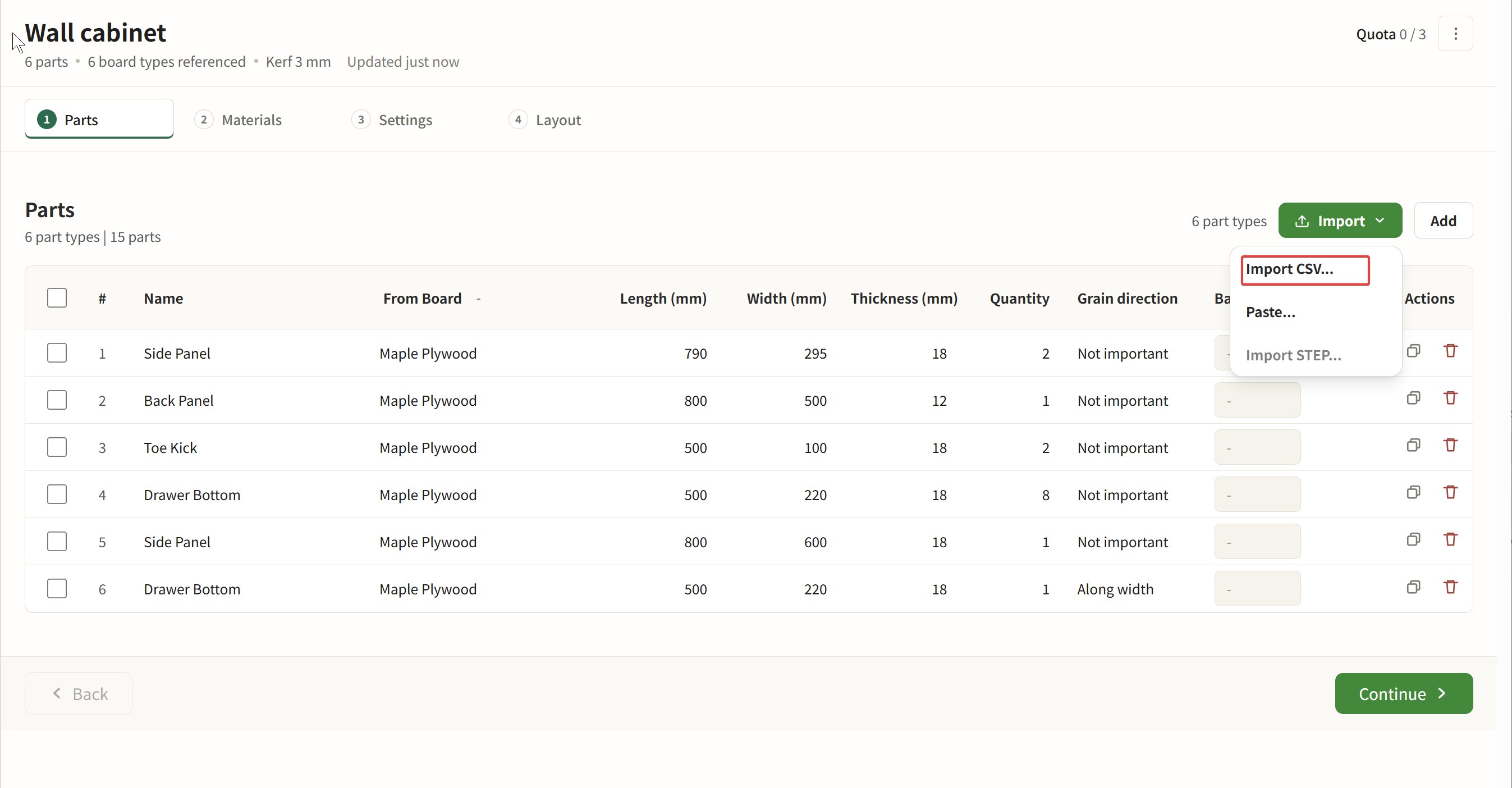
After you create a project, you can find a Download template button on the page. You can also open Import CSV and download the template from there.
Actually, you can use either:
CSVXLSX
What Parts and Boards means in Grainline Layout
In Grainline Layout, a Part is a real part you want to cut. And think of a Board as your stock material. You can assign each part to a specific board to ensure the best yield and grain match.
On the Parts screen and in an import file, each row describes one part type, and quantity tells Grainline Layout how many of that part you need.
That is why a project can show something like:
14 part types77 parts
What to put in the file
Each row should describe one part clearly enough that Grainline Layout knows what it is and which board it belongs to.
Typical columns include:
namelengthwidththicknessquantityboardgrain direction
💡 Learn more: Grain Direction in Plywood: What Actually Matters
If you download the metric template before creating your own rows, it will look more like this:
| name | length | width | thickness | quantity | board | grain direction |
|---|---|---|---|---|---|---|
| Side Panel | 780.8 | 292.8 | 18 | 2 | PLY-BIRCH-18-2440 | Not important |
| Shelf | 683.2 | 268.4 | 18 | 4 | MDF-18-2440 | Along length |
| Back Panel | 878.4 | 536.8 | 12 | 1 | PLY-MAPLE-12-2440 | Along width |
| Toe Kick | 878.4 | 97.6 | 18 | 1 | PLY-BIRCH-18-2440 | Not important |
| Drawer Bottom | 536.8 | 219.6 | 18 | 2 | MDF-18-2440 | Not important |
Grainline Layout already includes a few common board sizes and materials, so the template starts from realistic examples instead of a blank file.
You can also create the boards you are planning to buy or the boards you already have before you import the file.
In the import file, board can use either:
- board code
- board name
The basic import flow
The normal flow is simple:
- Download the template from Import
- Fill your cut list
- Upload it in Import CSV
- Check the preview
- Confirm the import
That preview step matters, because it lets you confirm the file before the parts are added to the project.
Preview helps you correct mismatches before import
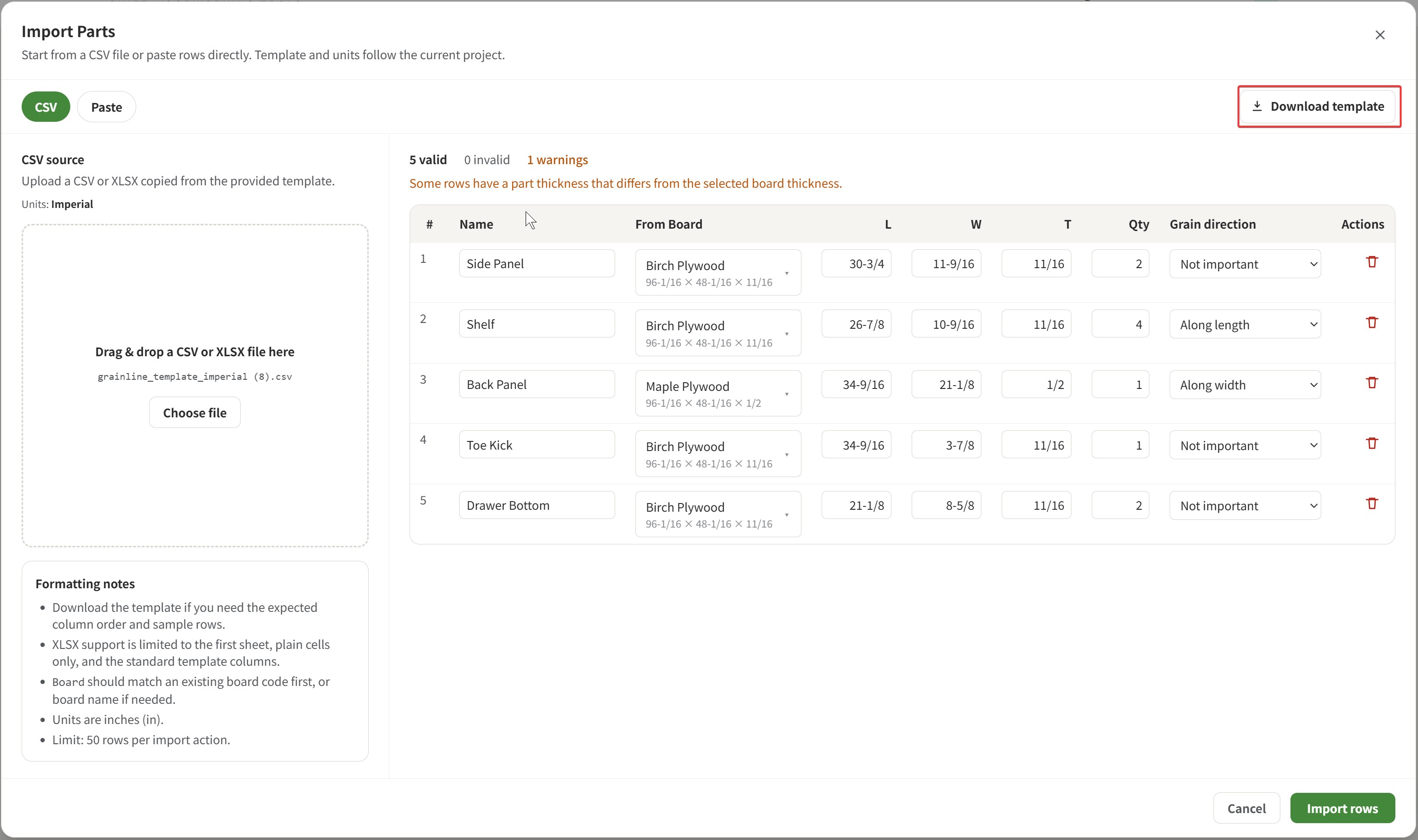 After you upload the file, you can preview the parsed result and catch any issues before importing it.
Grainline Layout tries to make the parts-preparation step as smooth as possible, so you do not have to worry too much about getting every detail perfect before you open the importer.
In preview, Grainline Layout can help you catch and correct things like:
- rows that look valid
- rows that need correction
- board values that need to be matched
- parts that do not fit the selected board as entered
thicknessvalues that do not match the selected board
Typical examples:
- If a part row names a board that is not found by
codeorname, Grainline Layout can help you to map it. - If
thicknessin the file does not match the selected board, Grainline Layout will warn you, but you can still continue with the import. - If a part size does not fit the selected board as entered, you can review and correct it during preview.
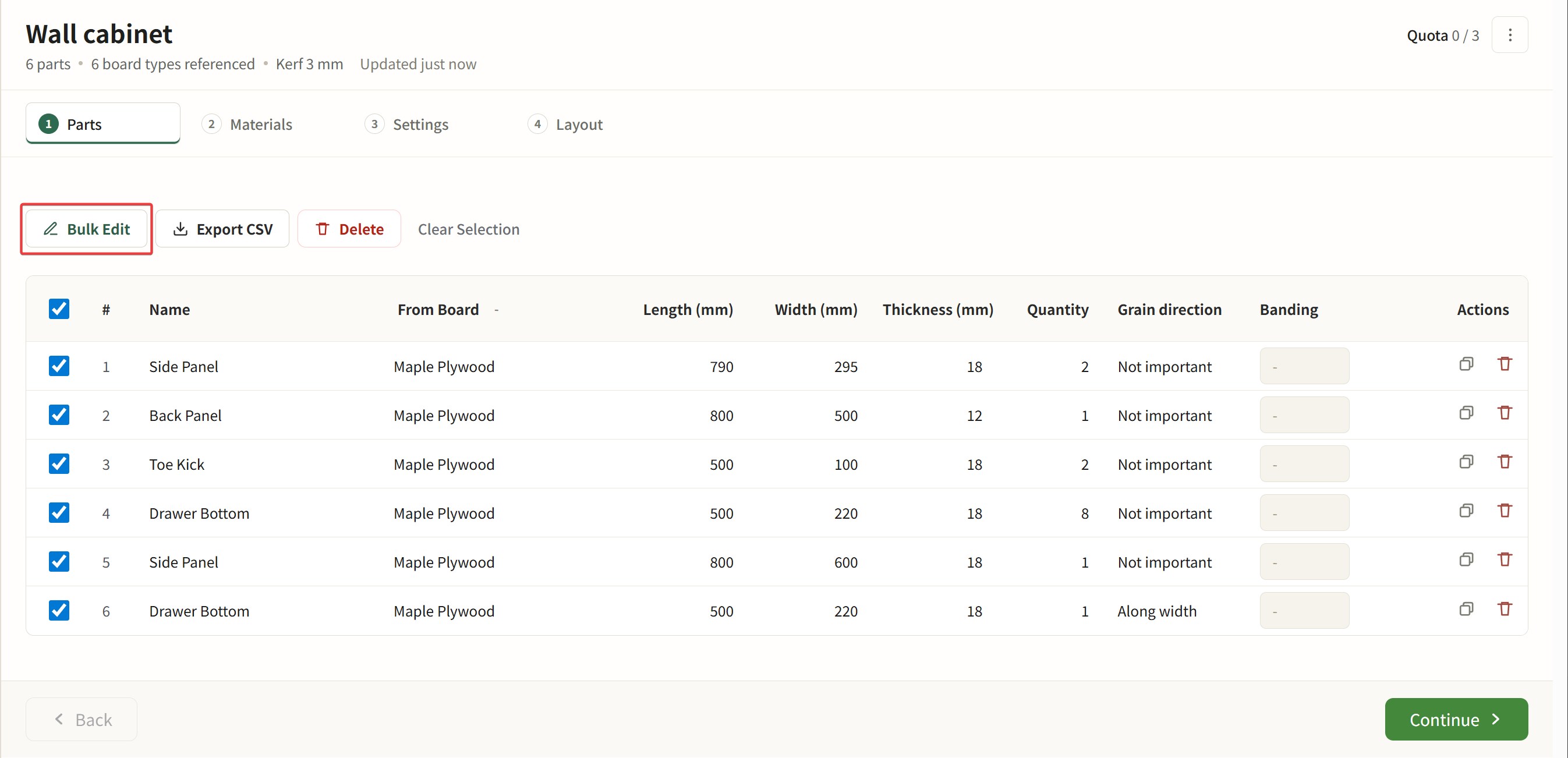
Even the parts are already imported, you can click a field to edit it inline, or use Bulk Edit for batch changes.