How to Edit Parts One by One or in Bulk in Grainline Layout
Learn how to edit parts in Grainline Layout one by one or in bulk so you can quickly correct dimensions, quantities, boards, and other cut list fields.
Grainline Layout gives you two ways to update parts:
- Inline edit when you want to change one part quickly
- Bulk edit when the same change should apply to several parts at once
Use the faster path for the job in front of you. You do not need to open a separate workflow every time.
Edit a Single Part Inline
Inline edit is the quickest way to correct one row.
In the parts table:
- Click the cell you want to change.
- Enter the new value.
- Confirm the edit.
That is usually the right choice when you are fixing one dimension, renaming one part, or adjusting one value after reviewing the table.
Use Bulk Edit for Repeated Changes
Bulk edit is for situations where several parts need the same update.
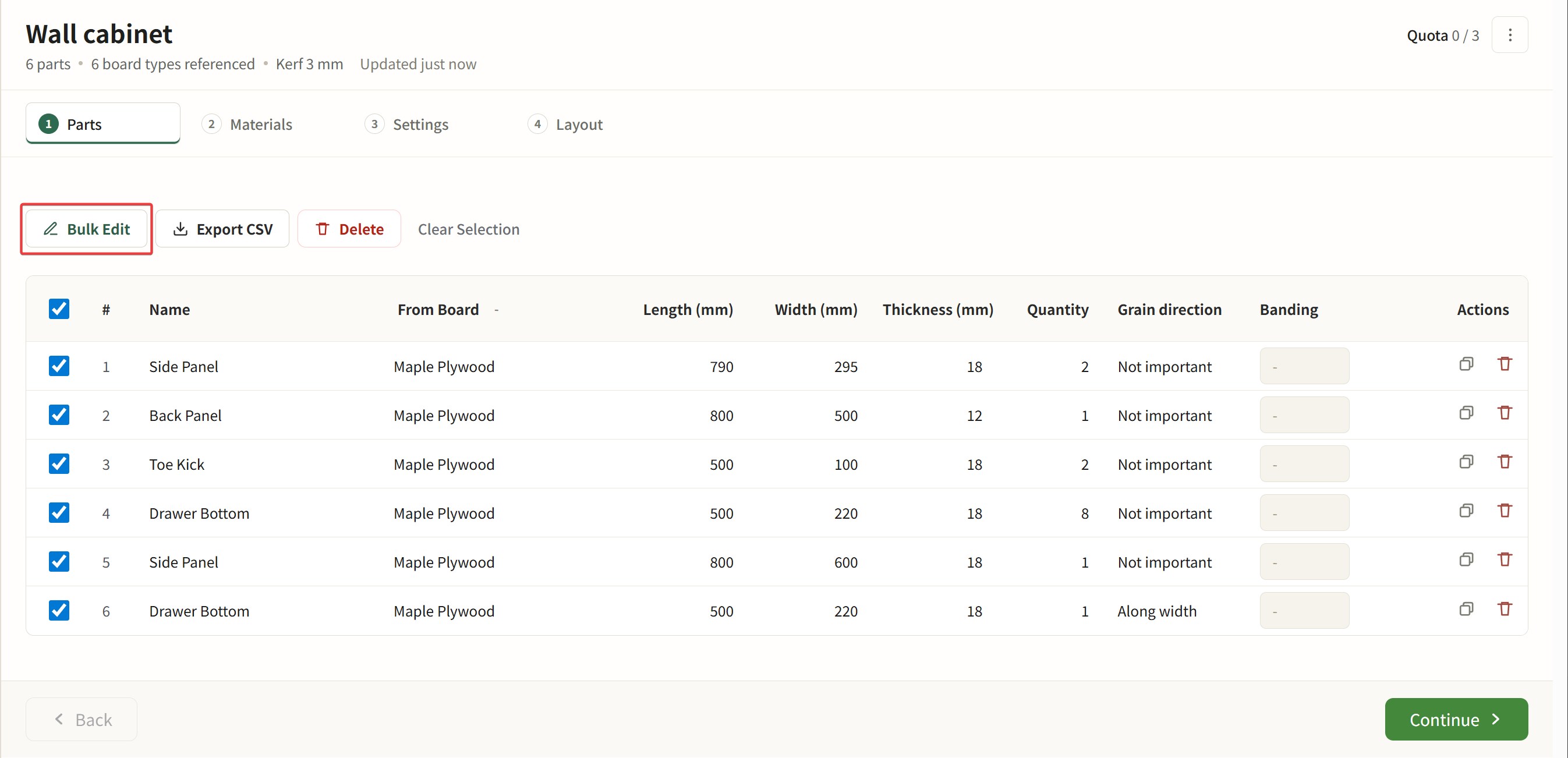
- Select the parts you want to change.
- Open Bulk Edit.
- Enter the shared change once.
- Apply it to the current selection.
This is faster than editing rows one by one, especially when you are cleaning up imported data or standardizing several parts at the same time.
Which One Should You Use?
Use inline edit when:
- only one part needs attention
- you are making a quick correction
Use bulk edit when:
- the same change applies to multiple parts
- you want to update a selection in one pass
If a field needs more explanation, such as grain direction or edge banding, see the dedicated guides for those topics.